Admin Guide
Follow these steps to configure your app and send active breaks to your team successfully.
1. To-do list
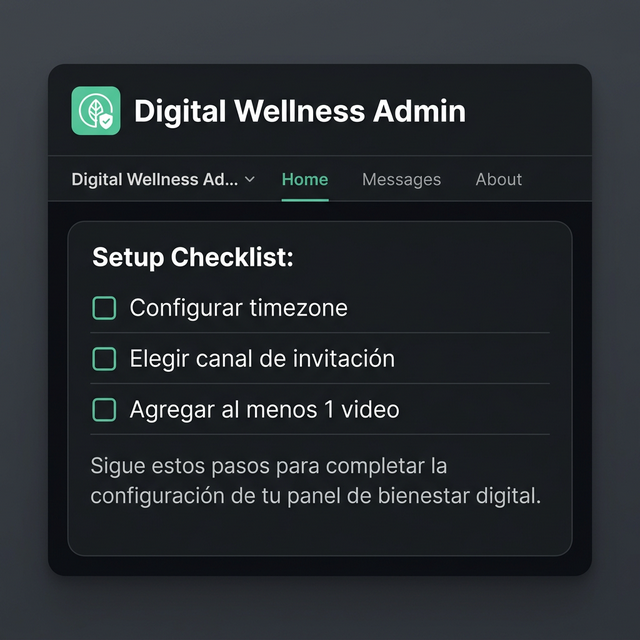
When you enter the app's Home tab for the first time, you will see a list of pending configurations at the top. This will help you know if you are missing any crucial steps.
2. Choose a Timezone
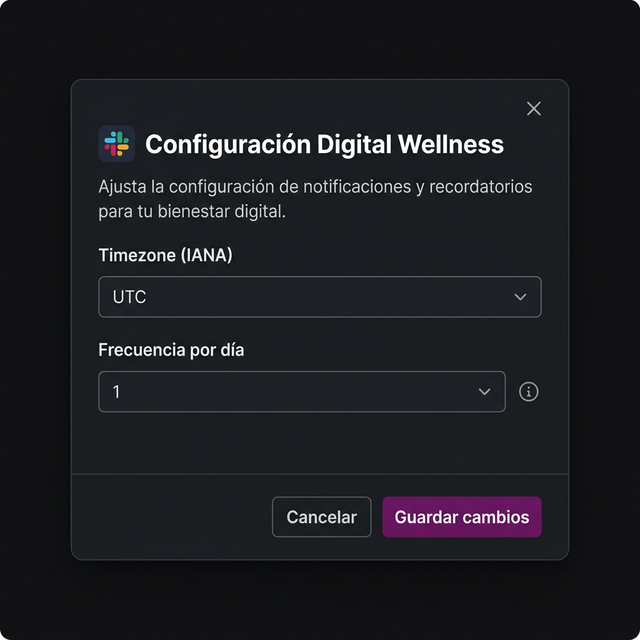
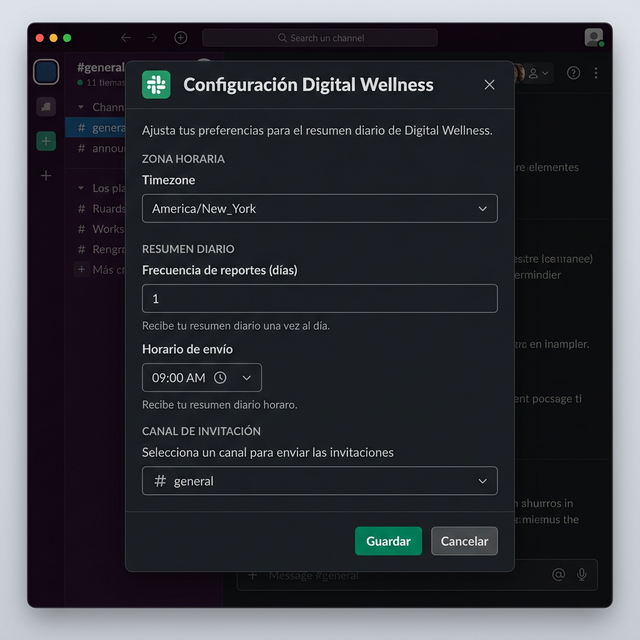
Under "Configuration", click the Edit configuration button. It is important to choose your local timezone (IANA format, e.g.: America/New_York) instead of UTC. This will ensure messages arrive at the right times.
3. Sending Frequency
In the same configuration dialog, select how often you want to send active breaks per day. You can choose to send the reminder 1, 2, or 3 times a day for your team.
4. Configure Schedule
Enter the times when these active breaks will be sent (in HH:MM format). If you chose more than 1 time a day, separate them by commas (e.g. 09:00, 15:00).
5. Invitation Channel
Finally, in the configuration choose the channel where the application will publish an optional announcement, inviting users to subscribe to the active breaks.
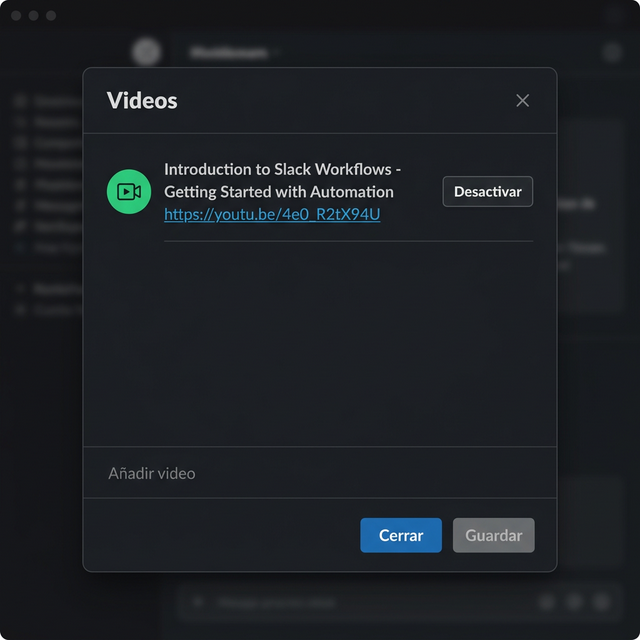
6. Add Videos
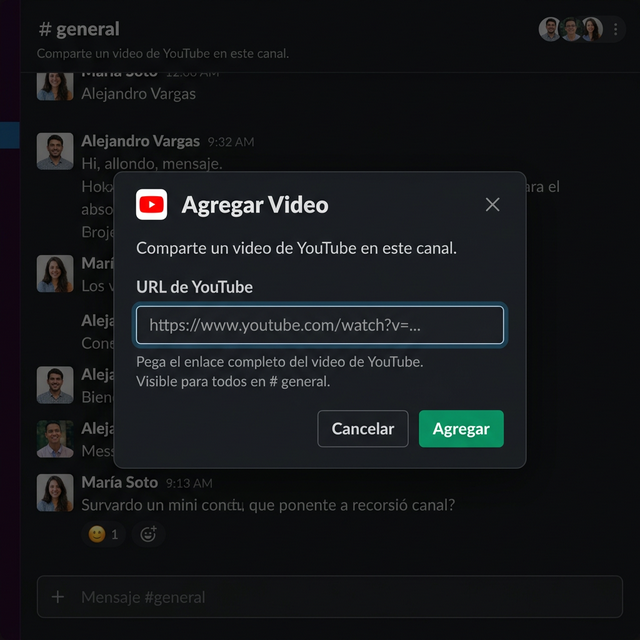
To add Youtube videos that will be sent to your team, click the Add video button. Paste the URL ensuring it is exactly the same as the one in your YouTube browser.
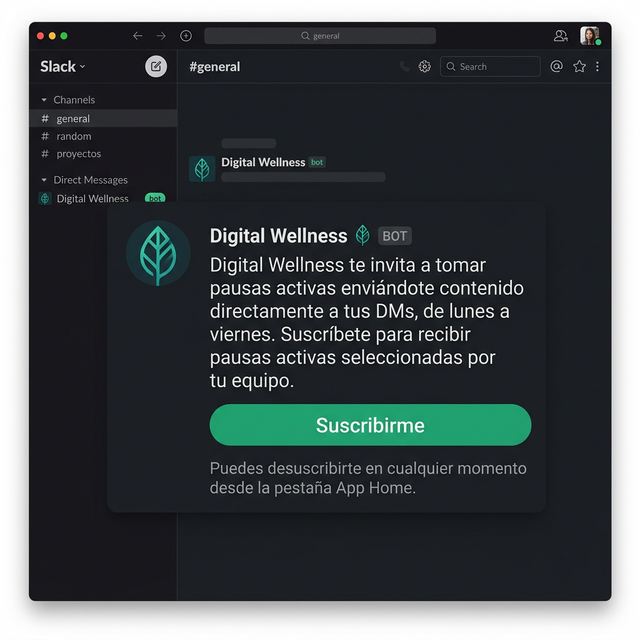
7. Publish Announcement
Under the "Actions" section, you will find the Publish announcement in channel option. This action will send the invitation message to the channel configured in step 5. Advise your users to read this message to know how they can subscribe.
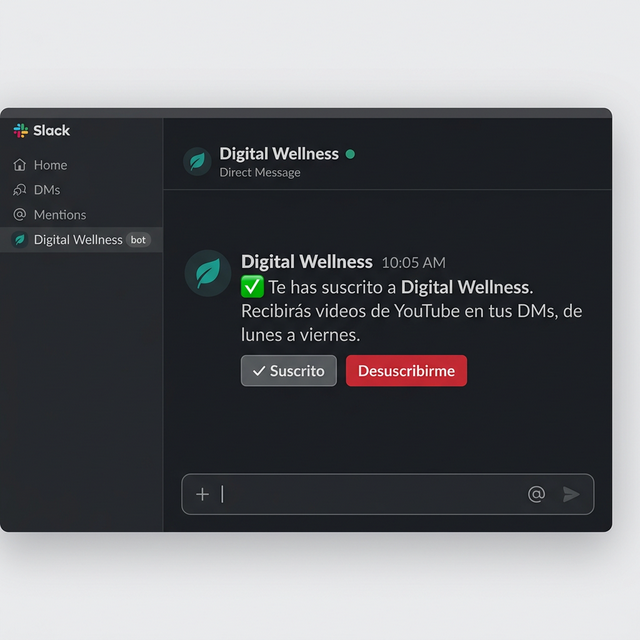
8. Invite new users
Additionally, there is a button to massively invite only new users in the workspace who have not yet been contacted. They will receive a Direct Message sent by the app with the invitation to join.
9. Manage Administrators
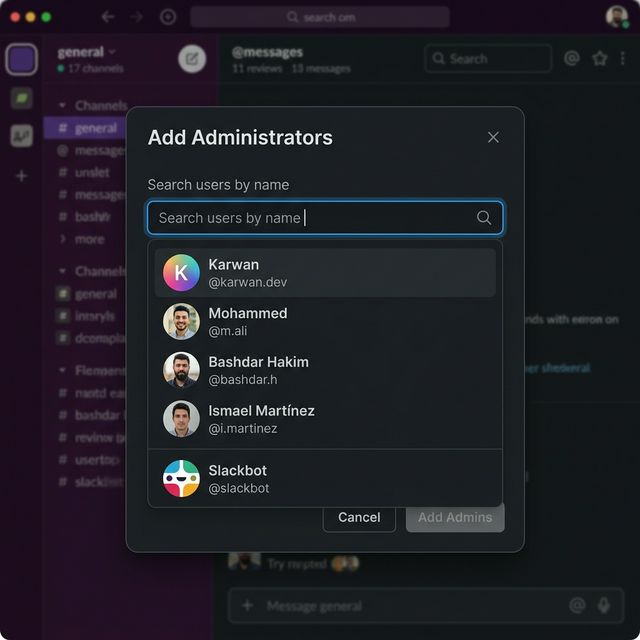
Under the "Actions" section, you will find the Manage Administrators option. This allows you to grant access to the admin menu to other users, who will be able to upload videos, configure schedules, and trigger commands. You (as the installer) will always maintain access.
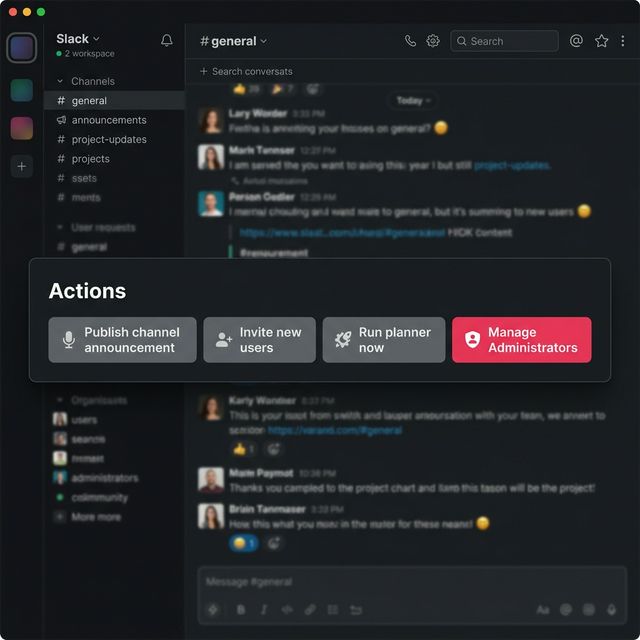
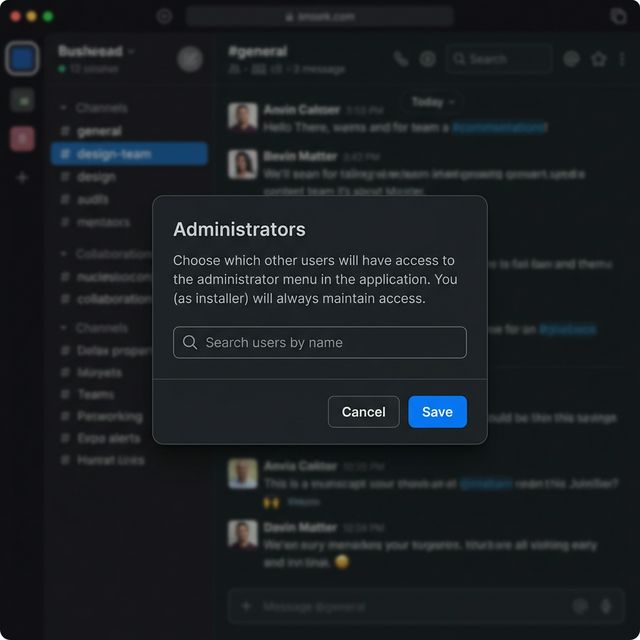
Simply click the input field, search for the user by name, and invite them. They will immediately gain access to the same configuration actions on their app's Home tab.
Note: For users, receiving the active break is as simple as clicking Subscribe inside the invitation message. Optionally, they can also configure their own timezone on their "Home" tab.